A few weeks ago, I updated my software and, for some reason, my status bar broke. I couldn’t refresh HerbstluftWM without an empty, unusable frame being created. Additionally, one corner of the bar was no longer visible. This was really inconvenient and had to be changed. In this post, I want to show you how I fixed my bar and made it my own as I went so that you can do that too.
How to start
As I had never customized my bar (it came pre-configured with Arco Linux), I thought, ‘Why not customize it now?’ So I did. The first hurdle was finding out how to customize something on Linux. Well, many parts of the operating system are customized via text files, which are usually placed in a program folder in the general config folder (.config folder in your user’s home folder), so for me that would be:
/home/broncosorestore/.config
I knew the status bar I use is called Polybar, so there had to be a folder in there. And indeed, inside the .config folder resides another folder for the Polybar customization. If you have Polybar installed and the folder is not there, you can just create it and continue with the tutorial. If you want to use the command line, you can use the following commands:
cd $HOME/.config && mkdir -p polybar
Inside this folder, there is the config file where the bar can be customized, which is just called “config” in my case. In newer versions, this name is deprecated, and config.ini is used instead. You can open this file in any text editor. I am using Neovim, but any other editor is fine as well. If you created the folder yourself, obviously the config file isn’t there, but you can create it yourself:
cd $HOME/.config/polybar && touch config.ini
Starting the Rice
Inside the file, you will be greeted by a wall of text and, if not, just copy whichever setting you like. In my case, it starts with the following:
[global/wm]
margin-top = 0
margin-bottom = 0
Since my config broke, I am not able to show you how my bar looked before, but the default config already looked really well before it crashed.
The first line in rectangular braces defines a new section. The settings inside a section can be referenced by other sections using $(section.setting) notation. I will describe it in a later section in more detail.
The first global settings only define how much margin the bar should have at the top and the bottom. If you set margin-top = 5 and save, now you have a 5px gap between the bar and the top of your screen. I want my bar at the top with no gaps, so I leave those settings as is.
In the next section, there are some more general settings. Those are for the compositor, and because I don’t want to meddle with the compositor, I left those as is.
[settings]
throttle-output = 5
throttle-output-for = 10
screenchange-reload = true
compositing-background = over
compositing-foreground = over
compositing-overline = over
compositing-underline = over
compositing-border = over
That said, the throttle part of the settings would give out an error, so I commented them out. You can comment lines out by using ; signs (see the second line in the code snippet? that is a comment too). Comments are not interpreted as code when converting the config, so you can use those as you want.
Colors, Colors Everywhere
This next section is a little bit more interesting, as it is all about coloring. The [colors] section contains all the information needed to color in the bar. This is how it looked for me:
[colors]
; Nord theme ===========
background = #2F343F
foreground = #f3f4f5
foreground-active = #6790EB
occupied = #cccccc
occupied-active = #b3c7f5
active = #5e81ac
alert = #d08770
volume-min = #a3be8c
volume-med = #ebcb8b
volume-max = #bf616a
As you can see, the standard Polybar on my system uses the Nord theme. You can define any color name you want and use it later. But the bar already has defined names, so if you do not want to break something, just use the names that are already there and exchange the values with your own. My favorite color theme is Dracula, so I switched the main colors to fit into that, which looks like this:
[colors]
; dracula theme ===========
background = #282a36
background-alt = #44475a
foreground = #f8f8f2
foreground-active = #bd93f9
foreground-att =#b3c7f5
occupied = #cccccc
occupied-active = #b3c7f5
active = #5e81ac
alert = #ff5555
disabled = #6272a4
volume-min = #a3be8c
volume-med = #ebcb8b
volume-max = #bf616a
primary = #bd93f9
secondary = #ffb86c
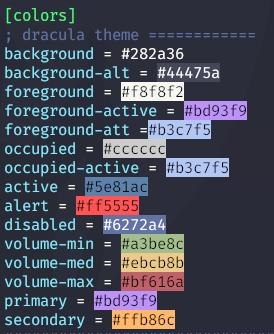
Well, I added some more colors and changed the main ones. But this is not really helpful. The values on the right side are RGB Hex color handles. To make this a little bit helpful, I added a color map to my vim config that shows me what color the value stands for, so it actually looks like this:
By saving the config, the colors should change if the values are correct. Changing foreground-active from #6790EB to #bd93f9 looks something like this:
 –>
–>

Do you see that the CPU module has the same color as before? This is because it uses a different color name than the sound and ‘Mem’ module. We will see what modules are later and how to change them to our hearts content. Some years ago, this would be already enough to change the colors. That is almost all you can do in Windows, right? But on Linux, this is just the beginning. If that is enough for your ricing needs, cool. But if not, stay tuned for the next installment of this series where we dive deeper into the polybar config.